

L’export
Discover how to export images for your presentation, scalable vector images, metadata (CSV) or convert in various 3D formats.
User Manual (english only)
Section intitulée « User Manual (english only) »Export tool
Section intitulée « Export tool »The Export tool allows to export the content of the current project to different file types. The nature of the exported content can be selected in the top bar menu of the Export.

Image export tool: Export a picture that has been created or captured in electronic form
Vectorial export tool: Export digital images created through a sequence of commands or mathematical statements that place lines and shapes in a given two-dimensional or three-dimensional space
Bill Of Material export tool: Export a list of the available metadatas
3D data export tool: Export data that provide the perception of depth
Image export tool (IMG)
Section intitulée « Image export tool (IMG) »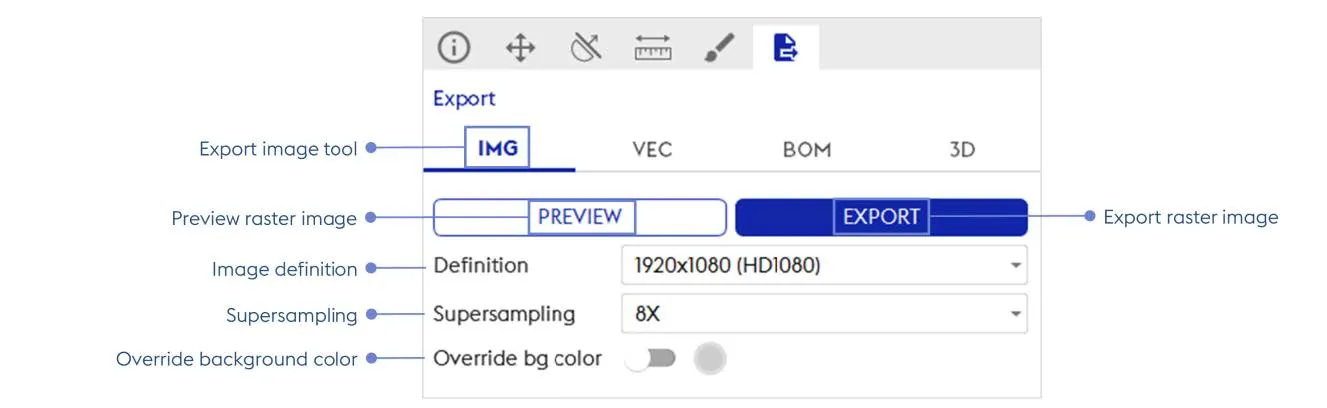 Export raster image
In the Image export tool (IMG), the user can modify export options.
Preview raster image: Enable to visualize criterias applied before exporting raster image
Export raster image: Enable to directly export raster image (bitmap) in PNG, JPG or TIFF format
Image export reflects objects effectively loaded in the 3D view.
Image Definition: Output size of the raster image
Supersampling: Number of samples per pixel (larger value = better quality)
Override background color: When the option is activated, edit the background color for the export only
Export vectorial tool (VEC)
Section intitulée « Export vectorial tool (VEC) »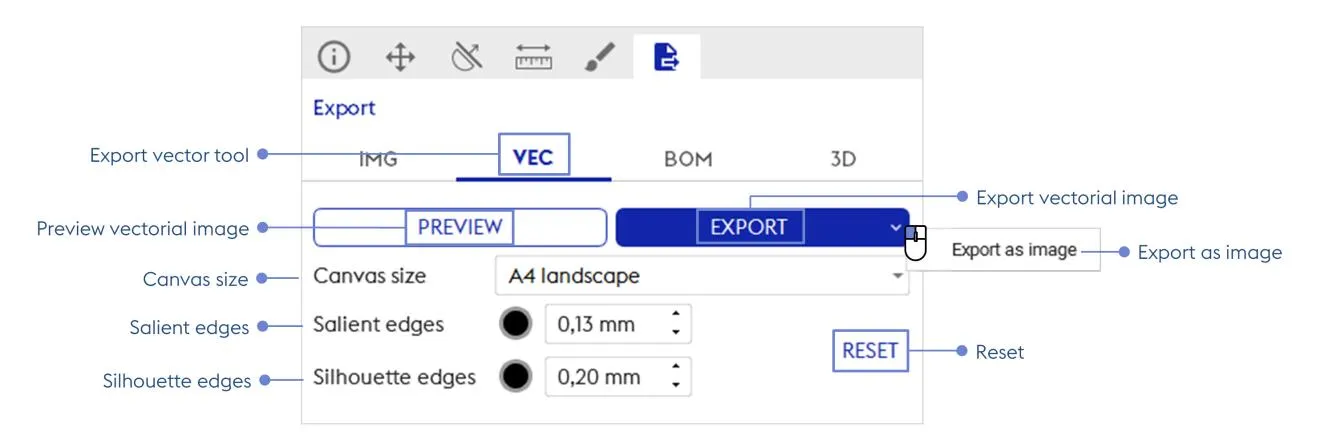
In the Export vectorial tool (VEC), the user can configure the vector image output.
Preview vectorial image: Enable to visualize criterias applied before exporting vectorial image bom
Export vectorial image: Enable to directly export vectorized images in SVG or DXF format
Under DXF format, salient and/or silhouette edge modifications WILL NOT be exported
Export as image: Enable to directly export image in JPG, PNG or TIFF format
Reset: Restore default settings of export
Export Bill Of Material tools (BOM)
Section intitulée « Export Bill Of Material tools (BOM) »In the Export Bill Of Material tools (BOM), each object can be exported as a CSV file. Export options for text data are available in the BOM settings panel.
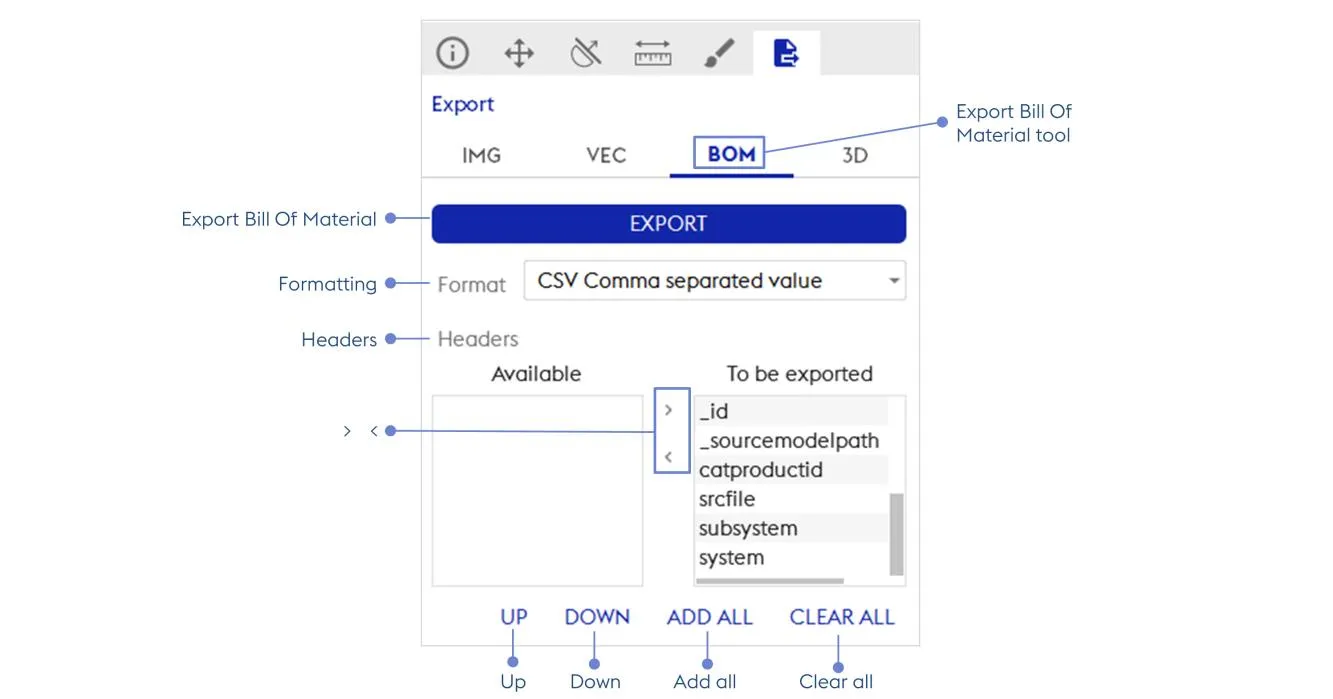
Export Bill Of Material: Enable to export text data of objects in CSV format
Formatting: CSV export format; 2 available formats: CSV (Comma Separated Value), CSV French version (semi-colon separated value)
Headers: At the bottom of the BOM settings panel, the user can select which text field should be exported in the CSV file
>: add the selected ‘Available’ metadata in the list of metadata to be exported
< : remove the selected ‘To be exported’ from the list of metadata to be exported
Up / Down: Move up/down the selected ‘To be exported’ metadata, to reorder list of metadata to be exported
Add all: Add all ‘Available’ metadata in ‘To be exported’ list
Clear all: Clear the ‘To be exported’ list of metadata
Export 3D data tool (3D)
Section intitulée « Export 3D data tool (3D) »The Export 3D data tool (3D) shows the options for exporting geometry of the project in a 3D file format, where the user can choose between the simplification settings.
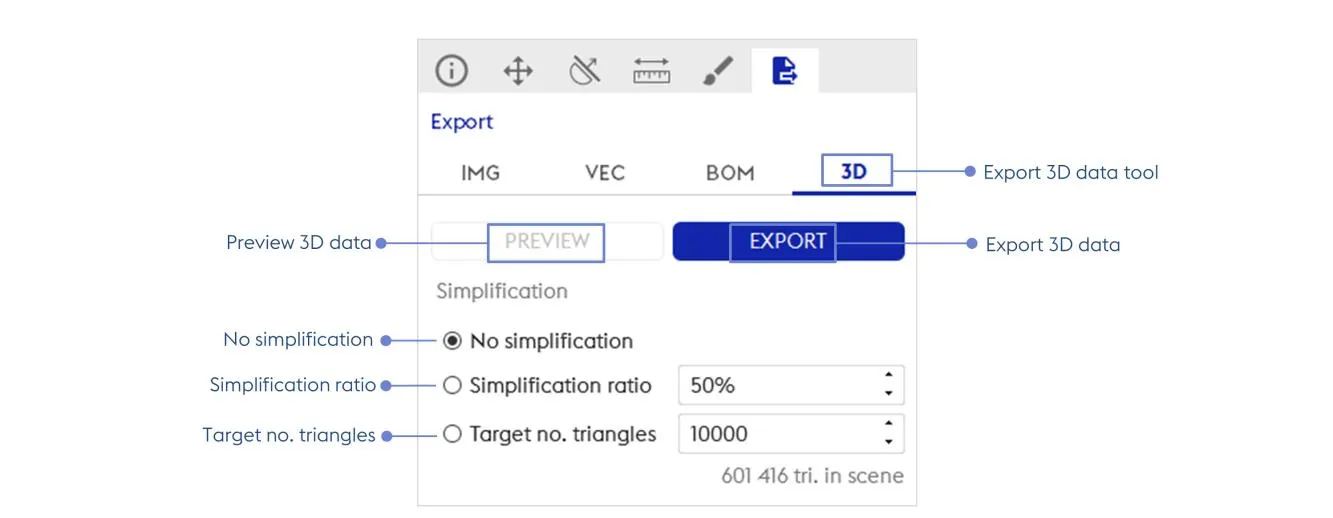
Preview 3D data: Enable to visualize criterias applied before exporting geometries
Export 3D data: Enable to directly export geometries in Autodesk FBX, JT, OBJ, STEP, STL binary, VRML97, VRML97 Compressed, 3DS, DAE (Collada files),GLTF 2 ,GLB (GLTF 2 binary) and SAT (ACIS)
No simplification: The geometry will be exported without simplification (same amount of triangle than initially loaded at import)
Simplification ratio: The geometry will be simplified so that the final number of triangles will not exceed a the input fraction, in percentage, of the original number of triangles loaded at import
Target no. triangles: The geometry will be compressed so that the final number of triangles will not exceed the input amount of triangle